
Mobile App Tips & Tricks — GoClubPro
Training Module 101 | Getting the Most from GoClubPro on a Smartphone
What This Guide Covers
Most members access GoClubPro on their phone, not a desktop. The mobile experience has specific behaviours, shortcuts, and gotchas that differ from a browser on a computer. This guide covers how to get the best experience on iOS and Android — from install to daily use.
Primary audience: All members — especially those who struggle with the mobile experience See also: 22 PWA & Offline Mode · 23 Notification Preferences
SECTION 1: INSTALLING THE APP
Installing as a PWA (Progressive Web App)
GoClubPro runs as a PWA — it installs from the browser, not the App Store. This means no download required, but the install step is slightly different depending on device.
On iPhone (Safari):
- Open GoClubPro in Safari (must be Safari — Chrome on iOS won't show the install option)
- Tap the Share button (box with arrow pointing up)
- Scroll down → tap "Add to Home Screen"
- Tap "Add" → the app icon appears on your home screen
On Android (Chrome):
- Open GoClubPro in Chrome
- Tap the three-dot menu (top right)
- Tap "Add to Home Screen" or "Install App"
- Tap "Install" → icon appears on home screen
Why install as a PWA?
- Full-screen experience (no browser address bar)
- Push notifications work properly
- Faster loading on repeat visits
- Works offline for recently viewed content (Module 22)
Enabling Push Notifications After Install
After installing the PWA:
- Open the app from the home screen icon
- When prompted "Allow notifications?" → tap Allow
- If you missed the prompt: device Settings → [App name or browser] → Notifications → Allow
iPhone gotcha: Safari PWA notifications on iPhone require iOS 16.4 or later. On older iOS versions, push notifications won't work — the member will only receive email notifications.
SECTION 2: DAILY USAGE ON MOBILE
The Dashboard on Mobile
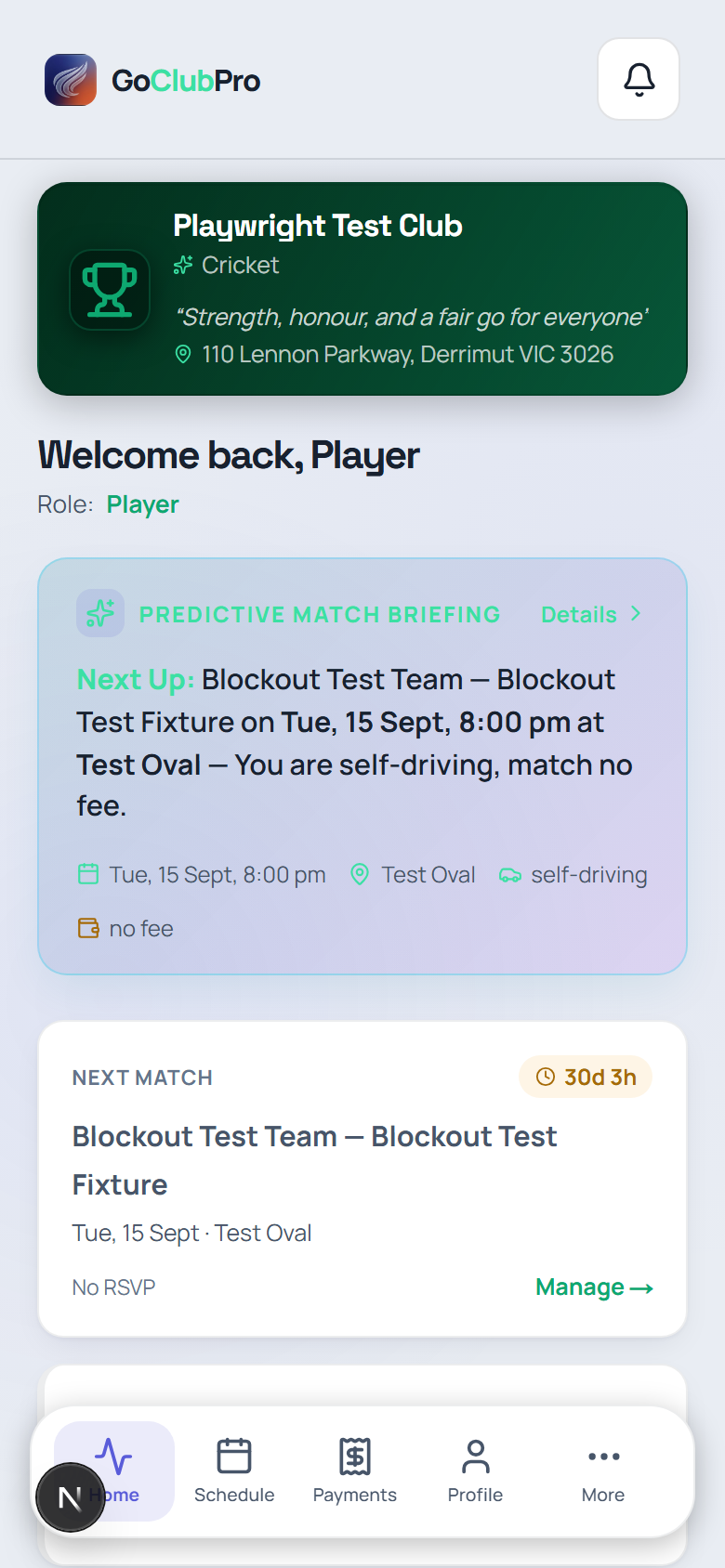
The mobile dashboard is identical in content to desktop but optimised for vertical scrolling. Key sections:
- This Week card: upcoming fixtures and training at a glance
- Outstanding fees banner: appears when fees are overdue (tappable to go straight to Payments)
- Noticeboard preview: last 2–3 posts (tap to open full feed)
- Quick actions: RSVP, Pay, View Squad (role-dependent)
Tip: The Dashboard refreshes when you pull down (swipe down from the top of the screen). If data looks stale, pull to refresh.
RSVPing on Mobile
Schedule → find the fixture → tap the availability indicator → select Available / Unavailable / Maybe
Tip: If you receive a push notification for a squad confirmation, tapping the notification takes you directly to the RSVP screen — no navigation needed.
Common mobile RSVP issue: "I tapped Available but it didn't save."
- Check internet connection (RSVP requires a live connection; offline mode doesn't save RSVPs)
- Tap the indicator firmly — the touch target is small on some devices
- After tapping, the indicator should change colour immediately; if not, retry
Paying Fees on Mobile
Payments → Outstanding tab → tap the fee → Pay Now → enter card details
Apple Pay / Google Pay: If the device has Apple Pay or Google Pay configured, a one-tap payment button may appear — the fastest payment method on mobile.
Mobile payment gotcha: If the payment screen shows a blank or doesn't load:
- Check you're on a stable connection (uploading a receipt photo requires a live connection)
- Try switching from WiFi to mobile data (or vice versa) if one is unreliable
- Clear the browser cache if using browser (not PWA)
SECTION 3: ADMIN TASKS ON MOBILE
What Works Well on Mobile
| Task | Mobile Experience |
|---|---|
| Viewing Noticeboard, posting comments | Excellent |
| Sending Broadcasts | Good |
| Approving new members | Good |
| Viewing Aging | Good |
| Checking squad / RSVP status | Excellent |
| Recording a result | Good |
| Adding an Accounting entry | Good |
| Viewing member profiles | Good |
What Works Better on Desktop
| Task | Why Desktop is Better |
|---|---|
| Settings configuration (fees, integrations) | Many form fields; easier with a keyboard |
| Bulk member operations | Small touch targets on large lists |
| CSV fixture import | File management easier on desktop |
| Accounting export | Download handling more reliable on desktop |
| League Platform Competition ID setup | Requires copy-pasting IDs; easier on desktop |
| Full season setup | Multi-step wizard; better with larger screen |
Best practice: Do initial season setup (fees, team creation, your league platform IDs) on desktop. Use mobile for day-to-day operations (RSVPs, Broadcasts, quick Accounting entries).
Adding an Accounting Entry on Mobile
Treasurer → Accounting → + (add button) → fill in Type, Description, Amount, Date → Save
The mobile form is fully functional. The keyboard takes up half the screen — scroll up after the keyboard appears to confirm all fields are visible before saving.
SECTION 4: TROUBLESHOOTING MOBILE ISSUES
Common Mobile Problems and Fixes
| Symptom | Likely Cause | Fix |
|---|---|---|
| App icon missing from home screen | PWA not installed | Re-install from Safari (iOS) or Chrome (Android) |
| No push notifications arriving | Notifications not allowed | Device Settings → Browser/App → Notifications → Allow |
| "Outdated" data showing | App not refreshed | Pull down to refresh; or close and reopen |
| Payment screen blank | Connection issue | Switch networks; try again |
| Can't upload photo | Browser permissions | Settings → Browser → Photos/Camera → Allow |
| RSVP won't save | Offline or poor connection | Confirm data connection; retry |
| Screen looks zoomed in | Accessibility zoom active | Settings → Accessibility → Display → reset zoom |
| Logged out unexpectedly | Session expired | Log in again; enable "Remember me" if available |
iPhone vs. Android Differences
| Feature | iPhone (iOS) | Android |
|---|---|---|
| Install method | Safari → Share → Add to Home Screen | Chrome → Menu → Install App |
| Push notifications | Requires iOS 16.4+; Safari only | Works on Chrome; broad compatibility |
| Apple Pay | Available if Apple Pay configured | Not available (Google Pay instead) |
| File uploads | Uses iOS Files / Photos | Uses Android file picker |
| Back navigation | Swipe right from edge | Back button (hardware or gesture) |
SECTION 5: HELPING LESS TECH-SAVVY MEMBERS
The "I Can't Get It to Work" Member
Common in community sport: a parent or older member who struggles with smartphone apps. Practical approach:
- In person at Round 1: Set aside 5 minutes to sit with them and walk through the install and first RSVP
- Printed one-pager: A simple 5-step printed guide ("Step 1: Open Safari. Step 2: Go to [URL]...") works well for members uncomfortable with technology
- Buddy system: Pair a less tech-savvy member with a player who can show them how to RSVP
- Fallback: If they genuinely can't use the app, the coach or team manager can RSVP on their behalf from the Admin Panel (Module 06)
The Accessibility Quick Reference
For members with specific accessibility needs, Module 46 covers full accessibility guidance. Mobile-specific quick notes:
- Large text: Device Settings → Accessibility → Display & Text Size → Larger Text
- Voice over / TalkBack: The platform is keyboard and screen reader compatible
- High contrast: Device-level high contrast settings apply to the PWA
- Zoom: Pinch-to-zoom works in the browser; PWA may restrict zoom on some views
VISUAL: Mobile Setup Checklist
FIRST TIME SETUP
 ☐ Install PWA from Safari (iOS) or Chrome (Android)
 ☐ Allow notifications when prompted
 ☐ Log in with email and password
 ☐ Complete profile (photo, emergency contact, blockouts)
 ☐ Enable Face ID / fingerprint for faster login (if available)

WEEKLY RHYTHM (MOBILE)
 Wednesday: Check squad confirmation notification
 Wednesday: RSVP if not auto-confirmed
 Thursday: Check Noticeboard for week's updates
 Saturday: Match day — check venue via Schedule
 Monday: Check results and Noticeboard match recap
TOOLTIPS & HINTS
- Safari on iPhone, not Chrome — only Safari shows the "Add to Home Screen" option on iOS
- Pull to refresh — the most reliable fix for stale data on mobile
- Apple Pay / Google Pay — fastest way to pay fees on mobile; one tap if configured
- Complex tasks → desktop — season setup, CSV import, Settings → use a computer
- Notifications require iOS 16.4+ — older iPhones won't get push; email is their notification channel
FAQ
Q: The app icon disappeared from my home screen after a phone update. What do I do? A: Reinstall the PWA from scratch using the install steps above. PWA icons can be lost during major iOS updates. Your account data is unaffected — just reinstall and log back in.
Q: A member is on an old Android phone and the app looks broken. What do we do? A: Very old Android versions (below Android 8) may have compatibility issues with modern PWAs. If updating the phone isn't an option, the member can use the mobile browser version (without the PWA install) as a fallback — functionality is the same, just no push notifications and no home screen icon.
Q: Can multiple family members use GoClubPro on the same phone? A: Each family member needs their own account. On a shared phone, they would need to log out and back in to switch accounts — or the parent account with Family Management (Module 14) can manage children's RSVPs and payments without the child needing their own device.
COMMON MISTAKES
| Mistake | Consequence | Fix |
|---|---|---|
| Installing from Chrome on iPhone | No "Add to Home Screen" option | Use Safari on iPhone |
| Skipping notification permission | No push notifications | Device Settings → allow notifications |
| Doing season setup on mobile | Frustrating experience; errors more likely | Use desktop for initial configuration |
| Not pulling to refresh | Stale data; thinks something is wrong | Pull to refresh before reporting an issue |
| Dismissing biometric login prompt | Have to type password every time | Enable Face ID / fingerprint in app settings |
SHORT ONBOARDING SCRIPT
"Get the best mobile experience by installing GoClubPro as a PWA: iPhone users open Safari, hit Share, and Add to Home Screen; Android users open Chrome, tap the menu, and Install App. Allow notifications when prompted. Day-to-day tasks — RSVP, pay fees, read Noticeboard — work great on mobile. For complex admin tasks like season setup or CSV imports, use a desktop. If data looks stale, pull down to refresh. And if a member is struggling with the app, five minutes sitting next to them at Round 1 solves 90% of issues."
MICRO-TRAINING QUICK TIPS
- iPhone install: Safari → Share → Add to Home Screen (not Chrome)
- Android install: Chrome → Menu → Install App
- Allow notifications when prompted (or device Settings → Browser → Notifications)
- Pull to refresh for stale data
- Apple Pay / Google Pay: fastest fee payment method on mobile
- Complex admin: use desktop (season setup, CSV import, Settings)
- Accessibility: device-level settings (large text, high contrast) apply to the app
Training Module 101 | See also: 22 PWA & Offline Mode · 23 Notification Preferences · 46 Accessibility Guide · 01 Login & Onboarding · 26 Master Troubleshooting