
Integrations & API Overview — GoClubPro
Training Module 97 | What Connects to GoClubPro, How It Works, and What to Do When It Breaks
What This Guide Covers
GoClubPro doesn't exist in isolation — it connects to sporting body platforms and communication services, and it has native (non-integrated) flows for payment collection. Understanding what's integrated, what flows automatically, and where the boundaries are helps admins configure things correctly and diagnose problems when they arise.
Primary audience: Club Admins, Technical Committee Members Also useful for: Platform Admin and Association Admins who configure platform integrations
SECTION 1: THE INTEGRATION MAP
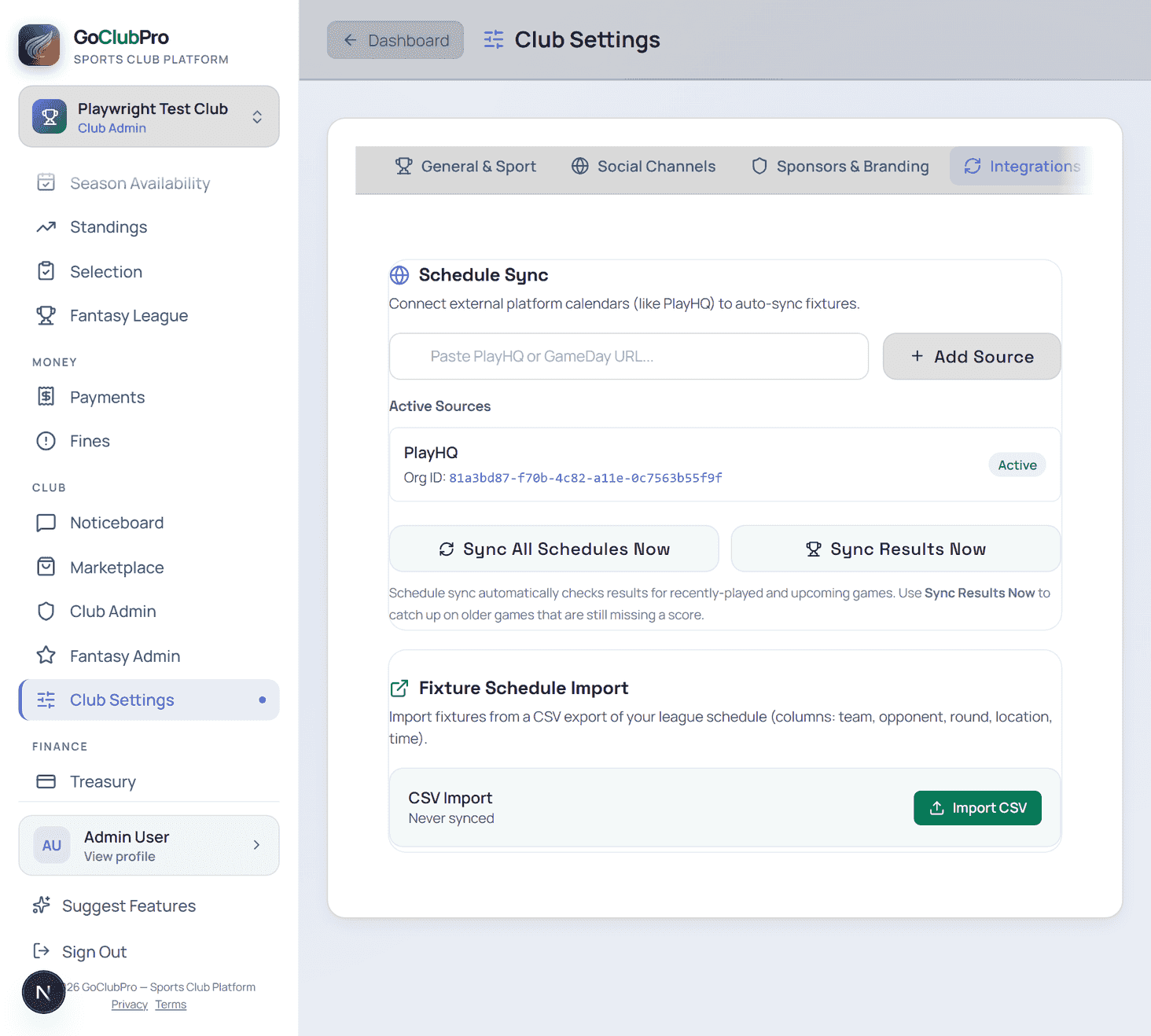
What GoClubPro Connects To
| Integration | What It Does | Direction | Configured Where |
|---|---|---|---|
| your league platform | Syncs fixtures, results, and player stats | Inbound (your league platform → GoClubPro) | Settings → Integrations → your league platform |
| Resend (email) | Delivers all platform emails (invitations, confirmations, reminders) | Outbound (GoClubPro → member email) | Platform-level (no admin config needed) |
| Push notifications | Sends in-app push notifications to member devices | Outbound (platform → device) | Members configure in device settings |
| CSV import | Imports fixture draws from external systems (SportsTG etc.) | Inbound (CSV file → Schedule) | Schedule → Import |
Third-party tools used alongside GoClubPro (not integrated):
- Google Drive (manual export/upload)
- Square/SumUp (canteen card payments — separate system)
- Association portals (your league platform self-registration, SportsTG — separate logins)
- Club website (linked via join URL — not technically integrated)
SECTION 2: PAYMENT COLLECTION (NO EXTERNAL PROCESSOR)
How Payment Collection Works in GoClubPro
GoClubPro does not integrate with a card payment processor. Fees are collected through two native, built-in flows:
- Bank Transfer declare — the member (or guardian) transfers funds directly to the club's bank account and declares the payment in GoClubPro, optionally attaching a receipt photo. This creates a Pending payment that the Treasurer reviews and manually confirms or rejects.
- Wallet credit — a member (or guardian) can top up wallet credit ahead of time (also via Bank Transfer declare + Treasurer verification). Once available, wallet credit is automatically applied to any new fee — fully or partially.
Because both flows are native to GoClubPro, there's no external account to connect, no webhook to configure, and nothing to transfer to a payment processor at committee changeover. See Module 37 for the current state of payment collection.
Common Payment Collection Issues
Symptom: Member says they can't find how to pay, or their declaration isn't being confirmed
Diagnose:
- Confirm the member used Bank Transfer / Declare Paid (not just transferred the money without declaring it in-app)
- Check the Treasurer's Reconciliation tab for the pending declaration
- Confirm someone currently holds the Treasurer role and is actively reviewing declarations
Common causes:
- Member transferred funds but never declared the payment in GoClubPro
- Declaration was rejected (check the rejection reason) and needs resubmission
- No one currently holds the Treasurer role to review it (see Module 36)
SECTION 3: Schedule Sync Integration
How your league platform Connects to GoClubPro
The Schedule Sync Integration syncs:
- Fixtures: Games from your league platform appear automatically in the GoClubPro Schedule
- Results: Results entered in GoClubPro may push back to your league platform (depends on your code/association)
- Player stats: your league platform stats appear on player profiles in GoClubPro (where available)
Configuration: Settings → Integrations → your league platform → enter your Competition IDs
Competition IDs are season-specific. They change every season when a new competition is created in your league platform. This is the most common source of sync failures.
schedule sync Troubleshooting
Symptom: Fixtures not appearing in GoClubPro
Diagnose — in order:
- Settings → your league platform → confirm Competition IDs are entered for the current season
- Log into your league platform → confirm the new season's competition is active and has fixtures published
- Confirm your club's teams are correctly linked in both systems (team names may need to match)
- Try triggering a manual sync if the option is available
Symptom: Wrong fixtures appearing (last season's games)
Cause: Old Competition IDs still configured Fix: Settings → your league platform → update Competition IDs to the new season's values
Symptom: Fixtures appearing in your league platform but not all in GoClubPro
Cause: Team linking may be incomplete (one team linked, another not) Fix: Settings → your league platform → check each team's Competition ID and team ID mapping
SECTION 4: EMAIL DELIVERY (RESEND)
How Platform Emails Are Sent
GoClubPro uses Resend (a transactional email service) to deliver:
- Member invitation emails ("You've been invited to join [Club Name]")
- Squad confirmation emails
- Payment receipt emails
- Password reset emails
- Broadcast emails (when Broadcast is sent to members)
- Aging reminder emails
These emails are sent from a platform domain (e.g., support@goclubpro.com or a custom domain if configured).
When Emails Aren't Being Received
Member reports: "I didn't get the invitation email"
Diagnose:
- Confirm the email address in Admin Panel → Members → member → email field (typo?)
- Ask the member to check their spam/junk folder
- Check if the member's email provider is blocking the sending domain (corporate firewalls often block transactional email)
- Re-send the invitation from Admin Panel → Members → member → Resend Invitation
Member reports: "I'm not getting Broadcast emails"
Diagnose:
- Check the member's Notification Preferences (Module 23) — they may have unsubscribed from email
- Confirm their email address is correct
- Some email providers (Microsoft 365 corporate, some school email systems) block bulk email — the member may need to whitelist the sending address
Best practice for members not receiving emails: Direct them to log in directly to the platform (bypassing email) and check Notification Preferences to ensure email is enabled.
SECTION 5: PUSH NOTIFICATIONS
How Push Works
Push notifications are sent from GoClubPro to member devices via their browser or PWA (Progressive Web App) install. Members must:
- Install GoClubPro as a PWA (Module 22) or access via a supported browser
- Allow notifications when prompted
- Have notifications enabled for the browser/app in device settings
When push notifications aren't working for a member:
- Check: Has the member allowed notifications in their browser settings?
- Check: Is the member's device in Do Not Disturb mode?
- Check: Has the member installed the PWA or is accessing via a browser?
- Check: Settings → Notifications in GoClubPro → are push notifications enabled?
SECTION 6: CSV IMPORT
How CSV Import Works
For associations that don't have a direct integration (SportsTG, many state-body systems):
- Admin downloads the fixture draw from the association's system as a CSV file
- Schedule → Import CSV → upload the file → map the columns
- Fixtures appear in the GoClubPro Schedule
Column mapping: The import wizard asks you to map columns from the CSV to GoClubPro fields:
- Date column → Match Date
- Time column → Match Time
- Home Team → Home Team
- Away Team → Away Team
- Venue → Venue
Common CSV import issues:
| Problem | Cause | Fix |
|---|---|---|
| Import fails with error | CSV format not recognised | Open in Excel/Google Sheets; check for extra columns or merged cells; save as plain CSV |
| Wrong dates after import | Date format mismatch (DD/MM/YYYY vs. MM/DD/YYYY) | Convert dates in CSV to ISO format (YYYY-MM-DD) before importing |
| Venue names not matching | CSV venue name ≠ venue name in GoClubPro | Map manually during import; update venue names to match |
| Missing games after import | Team name in CSV ≠ team name in GoClubPro | Ensure team names match exactly or use the mapping step to correct |
VISUAL: Integration Architecture
PAYMENT COLLECTION (native, no processor)
 Member declares Bank Transfer / wallet top-up → Treasurer verifies → Club bank account
 Wallet credit auto-applies to new fees
 │
league platform
 your league platform (fixtures/results) → GoClubPro Schedule
 Requires: Competition IDs updated each season
 │
EMAIL (RESEND)
 GoClubPro → Resend → Member inbox
 Spam filter issues: ask members to whitelist
 │
PUSH NOTIFICATIONS
 GoClubPro → Browser/PWA → Member device
 Requires: Member allows notifications
 │
CSV IMPORT
 Association system → CSV download → GoClubPro import
 Manual step: re-import after every draw change
TOOLTIPS & HINTS
- Competition IDs change every season — the single most common schedule sync failure; update immediately after new season setup in your league platform
- Payment collection needs no separate account — Bank Transfer declare and wallet credit are native to GoClubPro; handover just means transferring who reviews pending declarations (Module 36)
- Spam folder first — 90% of "I didn't get the email" issues are resolved by checking spam
- CSV format matters — a CSV with merged cells or special characters will fail; clean it in Google Sheets before importing
- Push requires opt-in — members must actively allow notifications; they can't be enabled by the admin
FAQ
Q: A member says they transferred money but it's not showing as paid. What do we do? A: Check the Reconciliation tab for a pending declaration from that member. If they transferred funds but never declared the payment in-app, ask them to declare it (Bank Transfer / Declare Paid) so the Treasurer can verify it against the bank statement.
Q: your league platform published the draw for the new season but it's not appearing in GoClubPro. What's wrong? A: Almost certainly the Competition IDs. Log into your league platform, find the new season's competition for each grade, copy the IDs, and update them in Settings → your league platform. Allow 30–60 minutes for the sync to run after updating.
Q: We changed our association and now use a different system. How do we update the integration? A: If moving from your league platform to a system without a direct integration: disable the Schedule Sync Integration in Settings, and switch to CSV import for fixtures. Contact GoClubPro support if there are other integration implications.
Q: A member's phone is getting push notifications but their email isn't arriving. Why? A: These are independent channels. Email may be going to spam, or the member may have unsubscribed from email notifications while keeping push enabled. Ask them to check their spam folder and their GoClubPro Notification Preferences (Module 23).
COMMON MISTAKES
| Mistake | Consequence | Prevention |
|---|---|---|
| Not updating League Platform Competition IDs at season start | No fixtures in Schedule; sync appears broken | First week of season checklist: update Competition IDs |
| Leaving pending declarations unreviewed when Treasurer changes | New Treasurer inherits a backlog; members' payments stay unconfirmed | Clear the Reconciliation queue as part of admin handover (Module 36) |
| Assuming email delivered because it was sent | Member doesn't receive invitation; delays onboarding | Confirm receipt; re-send + direct login as backup |
| Not re-importing CSV after draw changes | GoClubPro shows old fixtures; members given wrong information | Calendar reminder after association publishes draw changes |
| Push notifications as the only communication channel | Members who haven't enabled push miss critical updates | Always include email + Noticeboard for critical comms |
SHORT ONBOARDING SCRIPT
"GoClubPro has two core integrations: your league platform (fixtures/stats — update Competition IDs every season) and email via Resend (automatic — but check spam when members say they didn't receive emails). CSV import is the workaround for associations without a direct integration — manual, but straightforward. Payment collection (Bank Transfer declare + wallet credit) is native to GoClubPro, not a third-party integration — there's no processor account to maintain, just a Treasurer actively reviewing pending declarations. The most common integration failure is forgotten League Platform Competition IDs at the start of a new season — put it on your Season 1 Week 1 checklist. Push notifications require member opt-in — they're a complement to email, not a replacement."
MICRO-TRAINING QUICK TIPS
- Payment collection: native to GoClubPro (Bank Transfer + wallet credit); handed over with the Treasurer role, not a separate account
- your league platform: Competition IDs update every season (Settings → your league platform); allow 30–60 min to sync
- Email not received: spam folder first; then Notification Preferences; then resend invitation
- CSV import: clean the file first (no merged cells); re-import after draw changes
- Push: member opt-in required; don't rely on push for critical comms
- Integration failure diagnosis: check Settings → [Integration] first; then the external platform dashboard
Training Module 97 | See also: 25 Schedule Sync Integration · 37 Payment Collection Today · 22 PWA & Offline Mode · 23 Notification Preferences · 26 Master Troubleshooting